The workout creator
The creator builds a session in any format, on number wheels. Your workout lands in My workouts and runs exactly as you wrote it. Your AI can write one for you too: see Connect your AI.
Open the creator
On Today, tap Create a workout. You can also open My workouts beside Recent, then tap Create a workout on Sessions.
Without Pro, Create a workout opens the Pro page first. Once Pro is yours, the creator opens in its place.
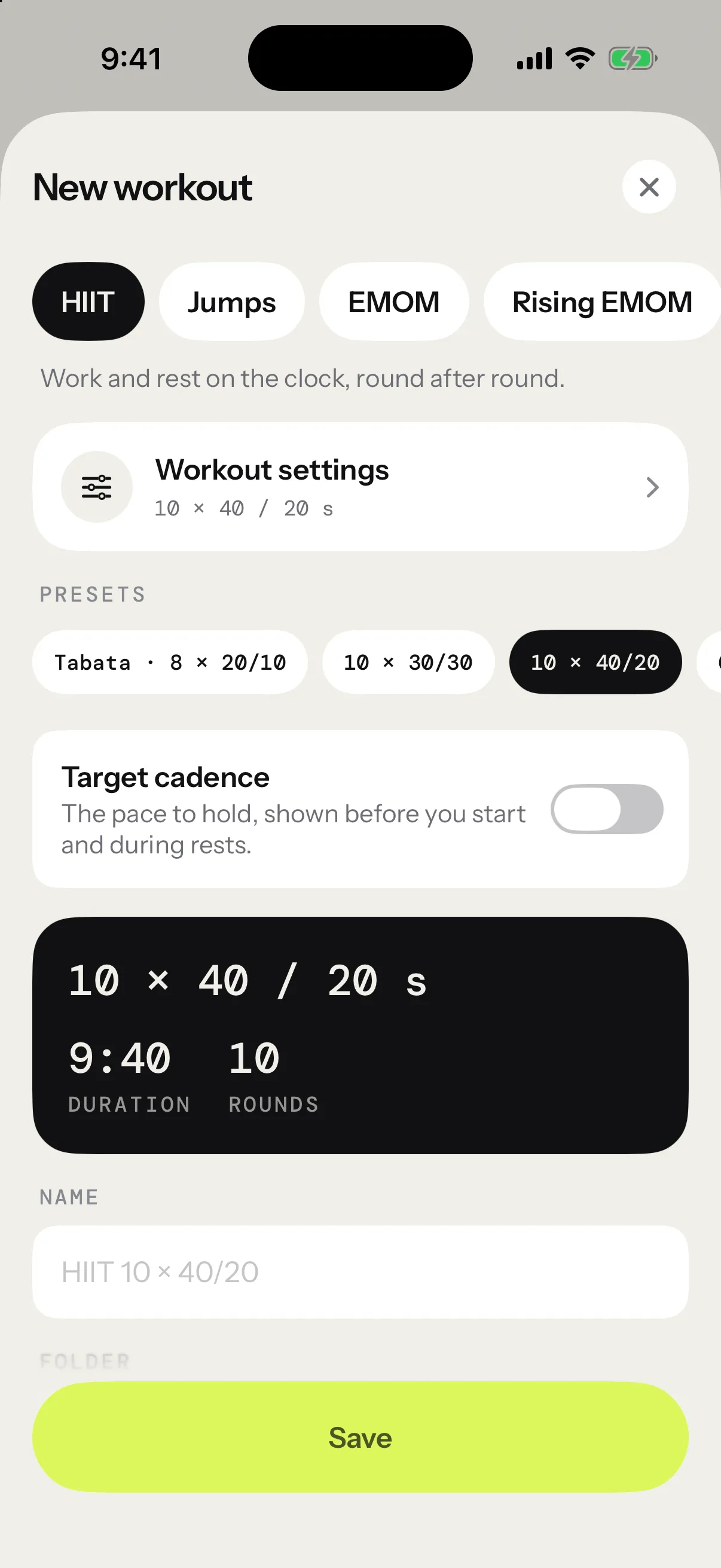
Pick a format
The chips along the top hold every format: HIIT, Jumps, EMOM, Rising EMOM, Pyramid, AMRAP, Density, Skill, Free and Max unbroken. A line under them says how the chosen one runs, and Session formats covers each one in detail.
Each format keeps its own numbers. Try another and come back: yours are where you left them.
Set the numbers
Tap Workout settings to open the format’s number wheels. Turn a wheel to set its number: you feel a tick for each value it passes. The labels under the wheels say what each one sets, such as Rounds, Work and Rest. Tap Done to close them, and the card shows your numbers.
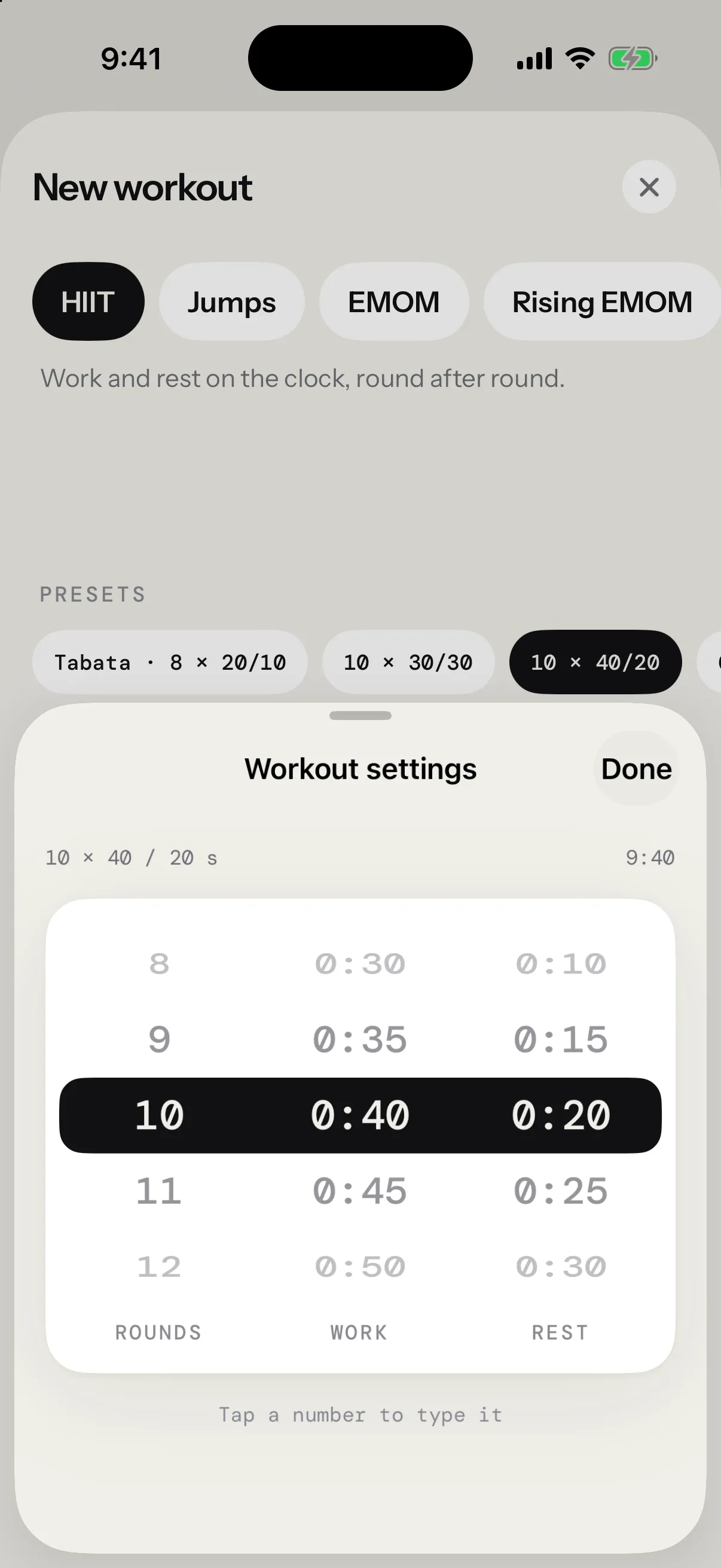
To type a number instead, tap it in the band across the wheels. Durations fill from the right, like a timer: type 1, 3, 0 for 1:30. Tap the check mark above the keyboard to keep it. You can type values the wheel skips, such as 37 s on a wheel that turns in steps of 5. A value past a limit comes back to the limit, and your iPhone buzzes.
Some formats add their own settings, right on the page:
- Target cadence sets a pace to hold, shown before you start and during rests.
- Until you miss turns a rising EMOM into a Death by.
- Goal gives the Free format a jump count to reach.
- Drills picks a skill session’s drills, in order.
- The pyramid’s shape: Up, Down or Up & down.
A summary card shows the workout as it will run: its numbers, its length on the clock, its rounds and the jumps it asks for.
Start from a preset
Presets set a format’s numbers in one tap, and you can adjust them after. Max unbroken has none, since there’s nothing to set.
| Format | Presets |
|---|---|
| HIIT | Tabata · 8 × 20/10, 10 × 30/30, 10 × 40/20, 6 × 1:00/30 |
| Jumps | 5 × 100, 10 × 50, 4 × 200 |
| EMOM | 10 × 25, 12 × 30, 15 × 40 |
| Rising EMOM | Death by 20 +10, Death by 30 +10, 20 +5 · 10 min |
| Pyramid | 50-100-150-100-50, 25→125→25, 100-200-300 |
| AMRAP | 5, 8, 10 and 20 min |
| Density | 5, 8, 10 and 15 min |
| Skill | Basics · 10 × 30/30, Footwork · 9 × 40/20, Double unders · 10 × 20/40 |
| Free | 500, 1,000, 2,000 and 5,000 jumps |
Name and save
Give the workout a Name, or leave it empty: it then takes the name its numbers suggest, such as HIIT 10 × 40/20 or Death by 20 +10. Once you have folders, Folder files it in one.
Tap Save at the bottom. The workout’s start screen opens, ready to go. The × at the top closes the creator without saving.
My workouts
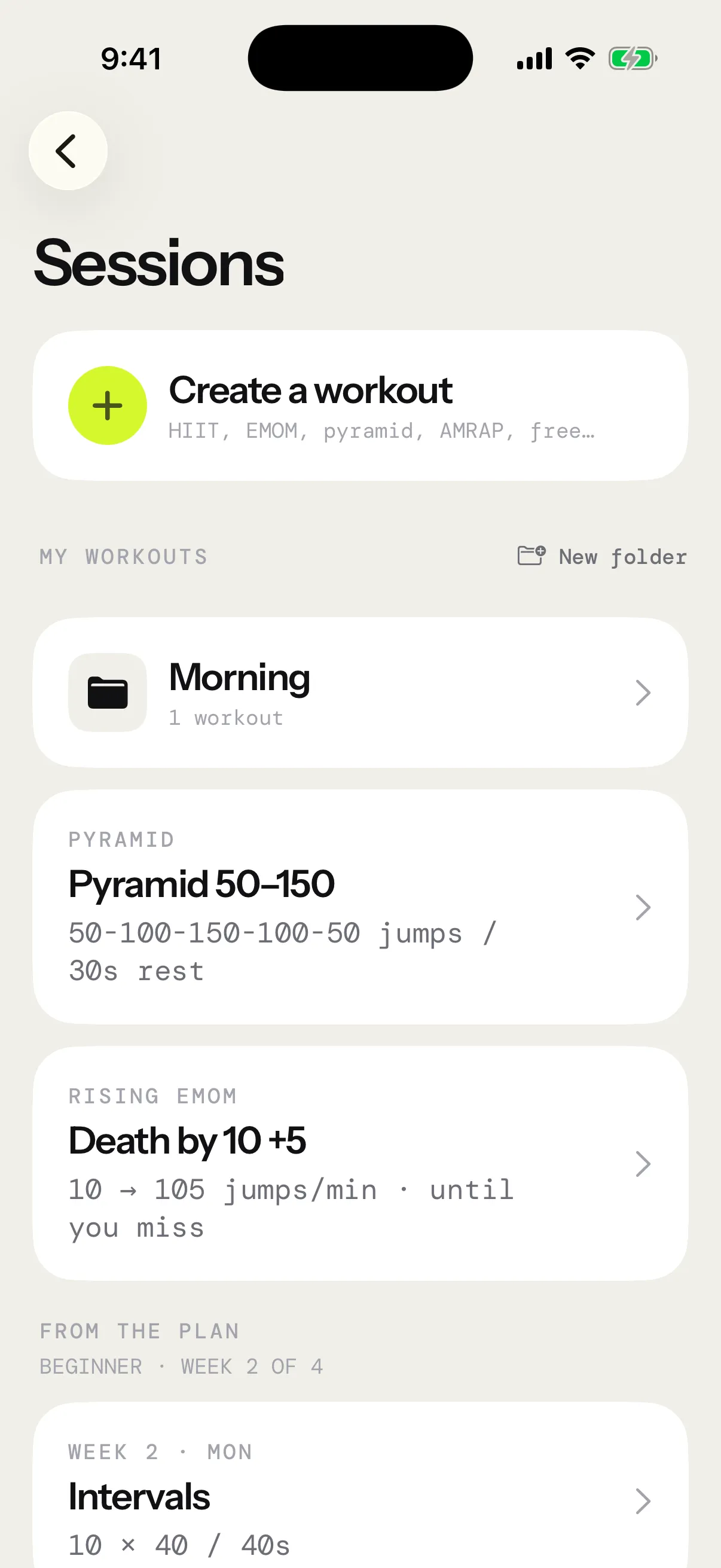
The Sessions screen gathers what you can start:
- Create a workout, at the top.
- My workouts: your folders, then the workouts in no folder, newest first. This section appears once you save a workout.
- From the plan: this week of the program you follow.
- No prescription: Free Jump.
Folders
To make a folder, tap New folder beside My workouts, name it, then tap Create.
To file a workout, touch and hold its card, tap Move to folder, then pick the folder. New folder… in that menu makes a folder and moves the workout into it in one go. Take out of folder puts it back in the list.
Open a folder to see its workouts. Its … button holds Rename and Delete folder. Deleting a folder keeps its workouts: they go back to My workouts.
Edit a workout
Touch and hold a workout’s card and tap Edit, or open the workout and tap Edit in the menu at the top right. The creator opens on Edit workout. Your changes show on its start screen as soon as you save.
Delete a workout
Open the workout in the creator with Edit, tap Delete workout at the bottom, then confirm. The sessions you already did with it are kept.
Share a workout
Open a workout and tap Share in the menu at the top right. The app sends a copy to jumpropeprotocol.app, then the share sheet opens with a short link. On an iPhone with the app, the link opens the workout in the creator as Imported workout, and Save adds it to My workouts; without Pro, Pro’s page opens first. Anyone else sees the workout on the site. Changes you make later don’t reach the link. See what a shared copy holds.
Start a saved workout
On Today, tap one of your workout cards to open its start screen. See all beside My workouts opens the full collection, including folders. Check the rope, your headphones and your heart-rate strap, then tap Start session. The live session covers the rest.
Workouts you build run on your iPhone, counted by your AirPods or Powerbeats, or on your Apple Watch. The Watch lists them under My workouts, and Count with › Apple Watch on a start screen sends one there. See Apple Watch.
As written, whatever the rope
A workout you build runs exactly as you set it. The rope in hand never scales it, so 100 jumps stay 100 jumps on a heavy rope. Only the built-in programs scale with your rope: see Ropes.
Build sessions for a program
In the program editor, Add a session › Build a session opens the same creator, titled New session. What you build there goes into the program, not into My workouts. See Programs.