Apple Watch
The Apple Watch app comes with the iPhone app and needs watchOS 10 or later. It counts your jumps from the motion of your wrist and taps your wrist as the session moves along, so your eyes can stay on the rope. Each session runs as an Apple Health workout: it keeps going with your wrist down, and when it ends it’s saved to Apple Health and sent to Progress on your iPhone.
Sessions on the Watch
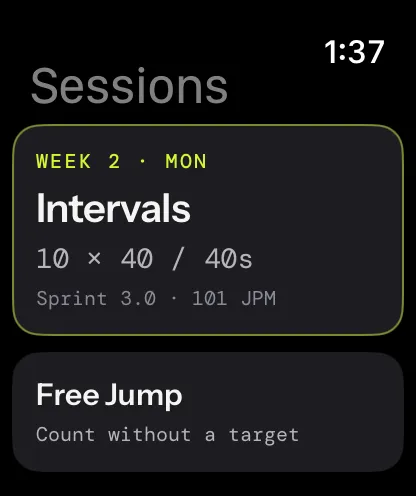
Open the app on your Apple Watch, where it’s named JRProtocol. Sessions lists what you can start, as your iPhone sets it up:
- On top, the next session of the program you follow, like Beginner · Week 1 · Mon.
- Free Jump.
- Under My workouts, the workouts you built on your iPhone.
- Under More sessions, EMOM, AMRAP and Jump intervals.
Sessions follow the rope in hand on your iPhone: the Watch shows its name and sets the targets for it. A change on your iPhone reaches the Watch the next time the two can talk, usually right away.
Free Jump is free. The other sessions come with Pro and show a lock until you have it. Pro is sold on the iPhone: once you buy it there, the same Apple Account opens the Watch’s sessions, and your iPhone tells the Watch too.
Start a session
- Tap a session.
- Check its card: the rope, the cadence and the prescription, and the dots that show motion and heart rate are ready. Your heart rate already shows live, from a paired strap, or from your wrist once Apple Health is allowed.
- Tap Start.
The first time, the Watch asks for Apple Health. Allow it: the workout it runs keeps the session going with your wrist down, and saves it. Without it, a session runs only while the app is on screen, and pauses when the app leaves it.
You can also start from your iPhone. On a session’s setup screen, pick Apple Watch under Count with, then tap Start on Apple Watch: the Watch app opens on that session, and you tap Start there once the rope is in your hands.
During a session
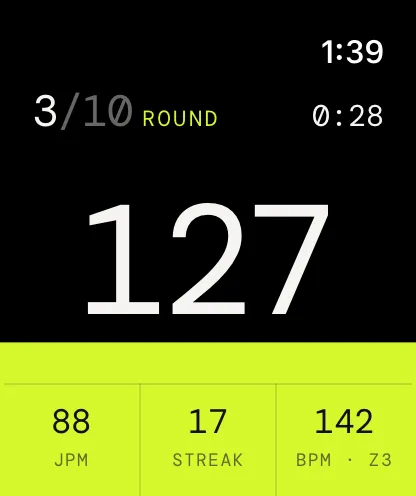
A countdown gets you on the rope. With Start on first jump on, Jump to start waits for your first jump instead. Then one number owns the screen: your jumps. The round and the phase’s clock sit on top, with JPM, Streak and BPM along the bottom, and a tide rises behind the count as the round goes by. Rest floods the screen blue and drains as it runs out, with your Total, your BPM and the next round’s Target.
After a trip, the clock keeps running and your streak shows the run you just finished, dimmed and marked Trip, until your next jump starts a new one. With the alert on, a heart rate at your max shows its own notice.
Lower your wrist and the session carries on: it keeps counting, timing and tapping. The screen dims and lets its colours go, and keeps your count and the clock.
Tap anywhere to pause. The paused screen shows your jumps so far, Resume and Hold to end. Keep your finger on Hold to end to finish: a tap alone never ends a session.
Taps on your wrist
The Watch taps your wrist at each step of the session:
- a click on 3, 2 and 1 of the countdown, and on the last 3 seconds of timed work when Countdown to rest is on
- one strong pulse when work starts, and a falling pair when rest starts
- a light double tap at each jump total and when you reach your goal
- a pattern of its own when your heart rate reaches your max
- a success tap when the session ends
A trip makes no tap: you already know. The taps stay the same whatever the voice says, except at the end of timed work: those clicks come with the voice, so they stop when Voice cues is off. With the voice off, the wrist still taps each milestone you set in Jump total.
The voice
Voice cues play through your headphones when they’re connected to the Watch, never louder than its volume. The Watch’s settings choose what the voice says: see Voice and announcements.
Heart rate and calories
The Watch reads your heart rate from its own sensor. A Bluetooth strap, like a Polar H10, paired with the Watch takes over while it reads: a chest strap is steadier than a wrist that turns a rope. A Bluetooth pairing belongs to one device, so a strap paired with your iPhone needs its own pairing on the Watch.
- At the bottom of Sessions, tap Heart rate strap.
- Put the strap on and wet the electrodes to wake it.
- Tap your strap under Straps in range.
Once it reads, its live BPM and battery show there. Forget this strap unpairs it. The summary names where the heart rate came from: Apple Watch or your strap. More on straps in Heart rate.
Calories come from your Apple Watch, measured the way Apple’s own workouts measure them: they need no weight in the app. They show in the summary under KCAL · EST., and in Apple Health with the workout.
Watch settings
Session settings, at the bottom of Sessions, holds the Watch’s own settings. They’re separate from the iPhone’s, except Start: a change to it on your iPhone reaches the Watch too.
| Setting | What it does |
|---|---|
| Start on first jump | Waits for your first jump instead of a countdown. Off to start |
| Countdown | None, or 3, 5, 10, 15 or 30 seconds, 3 to start. Greyed out while Start on first jump is on |
| Counting sensitivity | Low, Default or High. High catches softer bounces but may count movement that isn’t a jump. It applies from the next session |
| Voice cues | Turns the voice on or off, with its Volume |
| Announcements | What the voice says: Countdown, Countdown to rest, Work and rest, Round number, Time left, Jumps per round, Goal reached and End of session |
| Jump total | A milestone every 50, 100 or 200 jumps, or Off |
| Max heart rate | From 120 to 220 BPM, 190 to start. Your zones run from 50 to 100 % of it |
| High heart rate alert | Warns you once each time you reach your max |
After a session
When the session ends, the Watch shows its summary: Session complete or Session ended, your jumps, tiles with the key numbers and your time in each heart-rate zone. Its last lines say where the session went:
- Saved to Health: it’s a jump rope workout in Apple Health, with its calories and heart rate, and its pauses left out of its time.
- Sending to iPhone…: it’s on its way to Progress on your iPhone, where it lands the next time the iPhone app runs. Sent to iPhone: your iPhone has it.
A session that counted no jumps is kept nowhere. Tap Done to go back to Sessions, or Discard to remove the session from your history and Apple Health once you confirm.
On your watch face
Add Start a session to a watch face, in a circular, corner, inline or rectangular slot, or find it in the Smart Stack. A tap opens the app on Sessions.
What stays on the iPhone
The iPhone holds what you build and keep: your rope, your workouts and programs, your sessions in Progress, and Connect your AI. Sessions from the Watch join Progress and your badges there. Deleting one in Progress › Sessions also asks the Watch to remove its workout from Apple Health, which it does the next time its app opens. The Watch keeps its own settings and its own strap.