Getting started
Jump Rope Protocol counts every jump with your AirPods, Powerbeats or Apple Watch. It runs your sessions round by round and sets their targets for the rope in your hands.
What you need
- An iPhone with iOS 17 or later.
- Something to count with: AirPods Pro, AirPods (3rd generation or later), AirPods Max, Powerbeats or other Beats with head tracking, or an Apple Watch with watchOS 10 or later. The full list says which headphones count.
- A Bluetooth heart-rate strap, if you want your heart rate live. It’s optional: see Heart rate.
There’s no account to make. To keep counting with the iPhone locked, you need iOS 26 or later and Apple Health: see Off screen and on the Lock Screen.
The first launch
The first time you open the app, a short tour shows what it does, then sets up two things. It only shows once: on your other devices signed in to the same Apple Account with iCloud, the app skips it and only offers to connect Apple Health.
- Four pages show the app at work: counting, a plan that follows your rope, the live session and your progress. Swipe, or tap Continue. On the last one, the button reads Pick my rope. Skip goes straight to the setup.
- Pick the rope in your hands: Speed, PVC or beaded, Heavy or Very heavy. The app adds it to your ropes as the rope in hand, and sets targets for its weight. Not sure yet keeps the plan’s own targets. More in Ropes.
- Dial in your weight for calories, in kilograms or pounds, then tap Continue. Connect takes it from Apple Health instead, and lets the app save your sessions there. Later skips this step. More in Calories.
- Your first session is ready. Follow Beginner is chosen, so the card shows the program’s next session, set for your rope. Just jump follows no program, and the card turns to Free Jump. You can change your mind later, from Today. Start opens the session’s setup screen, and Go to Today takes you to Today.
The four tabs
- Today: your next program session, what you jumped lately and Free Jump. Until you save a workout or try a preset, Tabata and 1,000 jumps shortcuts help you get started. Your first session begins here.
- Plan: your program week by week, and every program you can follow. See Programs.
- Progress: your trends, your records and every session you kept. See Progress.
- Settings: language, appearance, headphones and strap, your weight, and the voice. See Settings.
The capsule at the top of Today shows the rope in hand. Tap it to open Ropes.
Without an active plan, Today puts your last-used saved workout first, or your newest one if you haven’t used any yet. With no saved workouts, Free Jump leads instead, with an invitation to choose a plan. Once you save a workout or try a preset, Recent replaces the starter shortcuts: your three latest sessions, one row per workout or preset, each with when you did it and what came of it, like Yesterday · 344 jumps. Its play button opens the start screen as it was last time: a preset comes back with the numbers you gave it. A workout you just saved shows there too; your program’s sessions stay on its card. My workouts opens your full collection, including folders; Browse presets keeps the ready-made sessions within reach.
Your first session
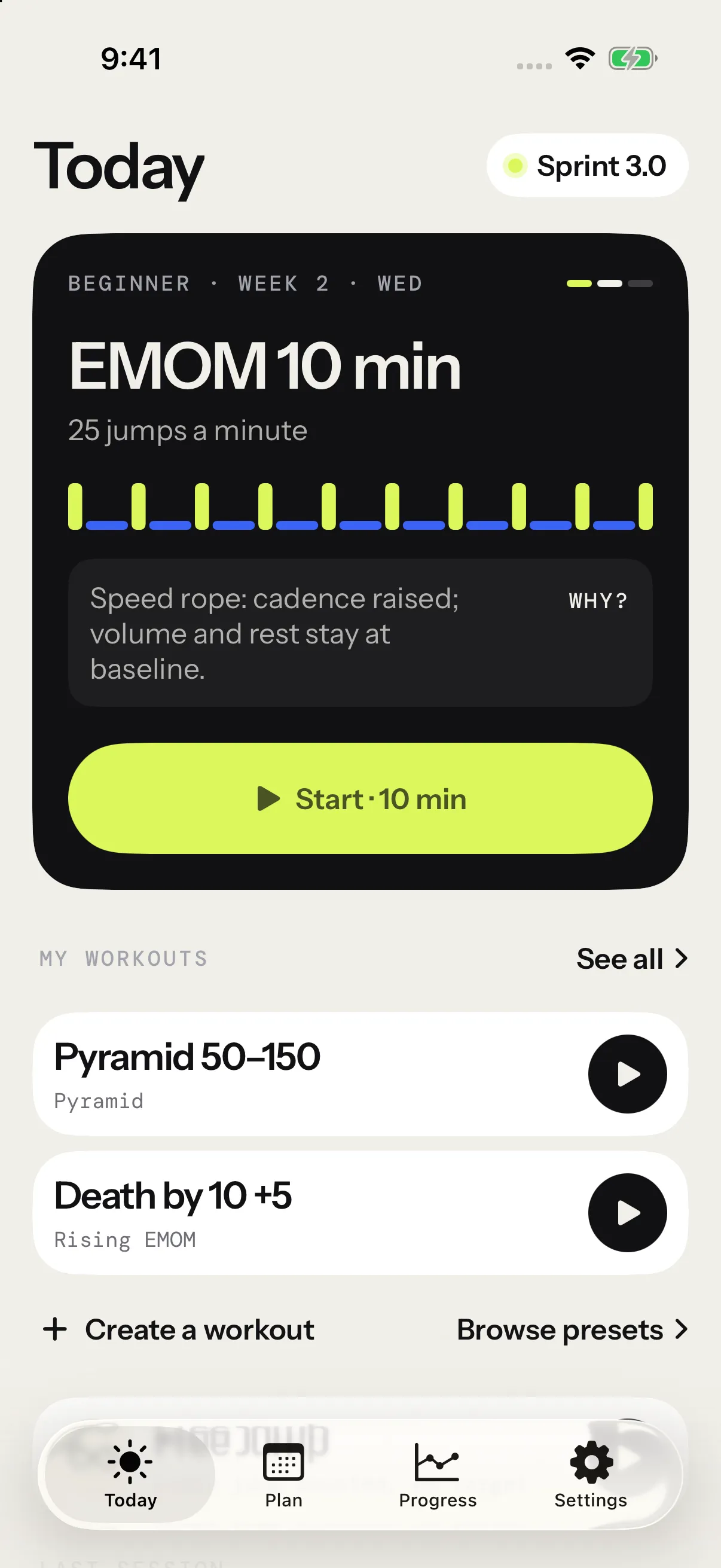
- On Today, tap Start on the program card. To count with no target, tap Free Jump instead; scroll down if needed.
- On the setup screen, keep Headphones under Count with. Put your AirPods or Powerbeats in and wait for Ready. The first time, tap Allow motion access and allow it.
- Set your iPhone on the floor where you can read it, then tap Start session.
- Pick up your rope. Lime rises up the screen as it counts down 3, 2, 1.
- Jump. The count, the round and the clock are big enough to read from the floor.
- Most sessions end by themselves after the last round. To stop sooner, or to end a Free Jump, tap the screen to pause, then press and hold Hold to end.
- The summary shows what you did, and your first badge, First turn. Tap Done.
- Back on Today, a card asks how many sessions a week you aim for, then offers reminders. See Weekly goal and reminders.
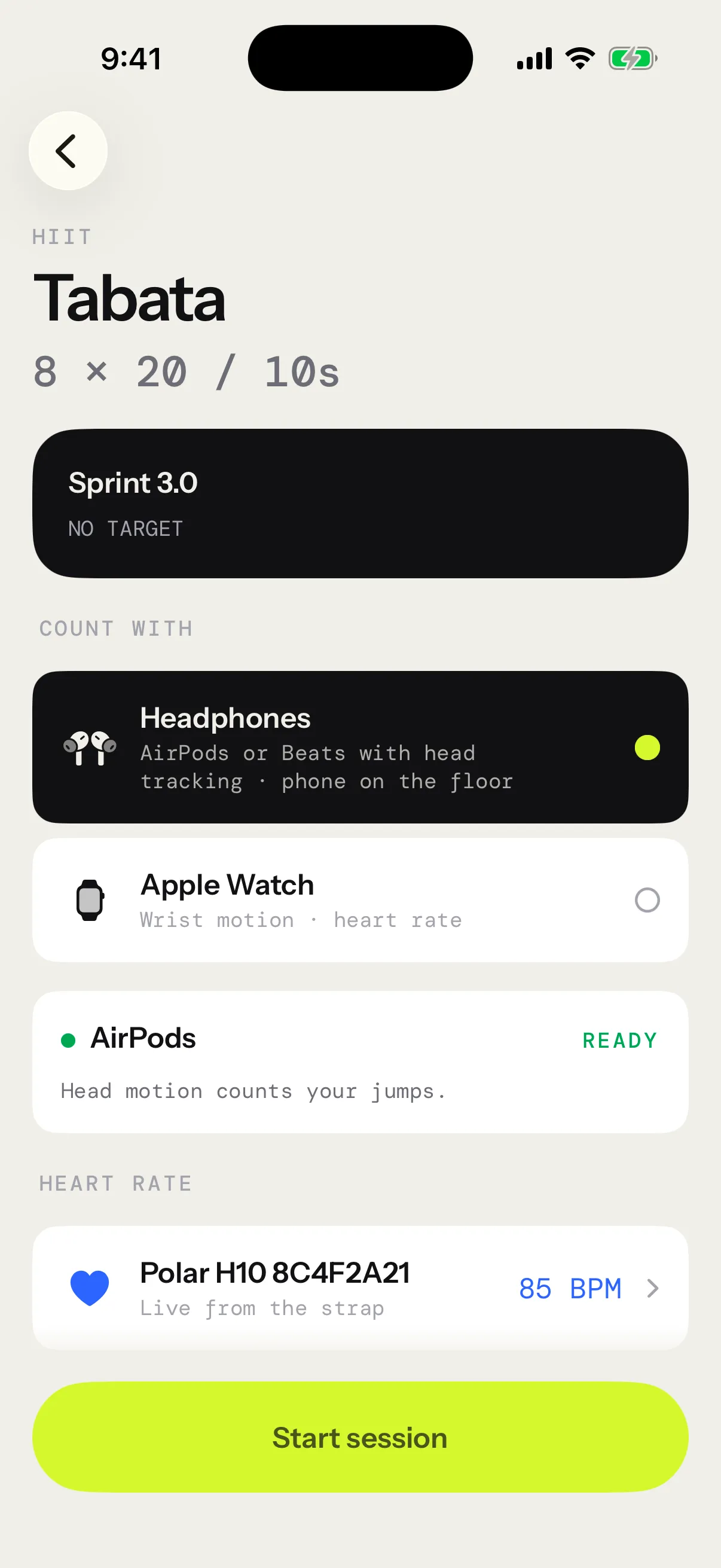
Start session stays dimmed until your headphones are ready. To count with your Apple Watch, pick it under Count with: Start on Apple Watch opens the session on the Watch. See Apple Watch. Every screen of a session is in The live session.
Where to go next
- Counting your jumps: which headphones count, sensitivity, trips and streaks.
- Session formats: every way the app can run a session.
- Ropes: how the rope in hand changes your targets.
- Weekly goal and reminders: a number of sessions a week, and reminders toward it.
- Heart rate: pair a strap for live BPM.
- Voice and announcements: what the voice says, and how loud.