Progress
Every session you finish lands in the Progress tab. Its two views split the job: Progress shows what’s getting better, and Sessions keeps every session, day by day.
The menu at the top right filters both views by rope: All ropes, one of your ropes, or No rope set. A heavier rope turns slower, so comparing a rope with itself keeps the numbers honest.
Pro opens the tab on Progress and the free version on Sessions. After that, the tab opens on the view you picked last.
The Progress view
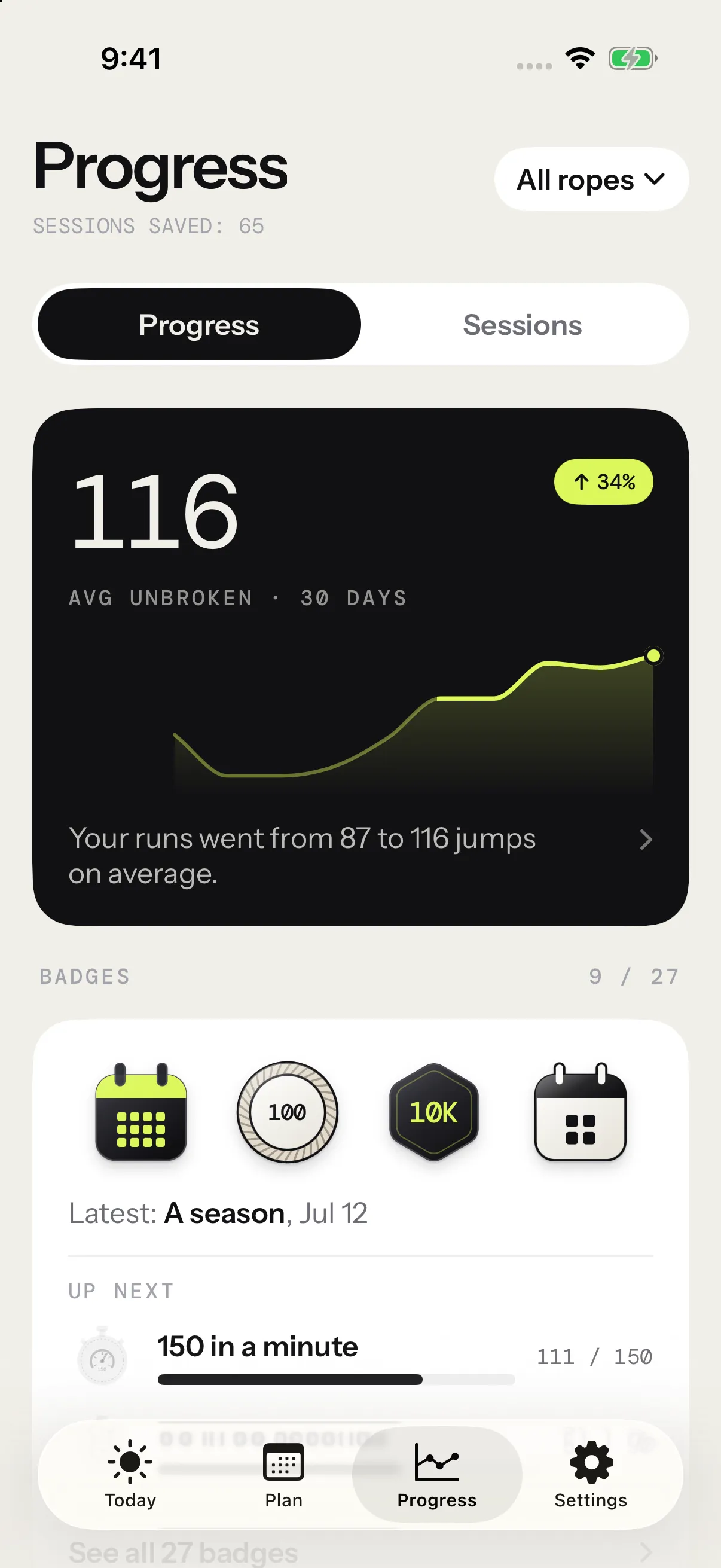
The view opens on one fact about your last 30 days: your biggest real gain, with its last 12 weeks drawn as a line. The card picks it from your speed, your runs and your trips, when you have at least three sessions in the last 30 days and four in the 90 days before. Or else it shows your weekly jumps, from four sessions in the last 30 days and twelve in the 90 before. With no gain to show, it counts your weeks in a row, once there are two, and before that your sessions of the last 30 days. It never shows a drop.
Tap the card to open the chart behind it. Without Pro, it opens the Pro page.
Since the start
Under the opening card, Since the start counts every jump since your first session. When the total grew since you last looked, its digits turn up to the new count and it says by how much, like +1,797 today. Bars show your jumps week by week, month by month or year by year as your history grows, then come your sessions, your time under the rope and your active weeks. The last line names your next milestone, like 250,000 jumps, and when you should pass it at the pace of your last four weeks.
Tap the card to open the whole story: a chart of your jumps, time or sessions, each period with its jumps, and every milestone you passed, with the session that crossed it.
Badges
Next, Badges shows your latest badges and how many you hold out of 27. Tap it to open your collection. See Badges.
Trends
Trends compares your last 30 days with the time before, on five axes. Each row shows the axis’s lead measure, a small line of its last 12 weeks, and how much it moved.
| Axis | Lead measure | Also inside |
|---|---|---|
| Speed | Fastest minute | Fastest 30 s |
| Endurance | Best unbroken | Avg unbroken |
| Technique | Trips / 100 jumps | — |
| Volume | Jumps / week | Under rope / week |
| Consistency | Sessions / week | — |
The comparison stays fair:
- A best, like your fastest minute, puts your best of the last 30 days against your average best over the three 30-day stretches before.
- Averages and trip rates put the last 30 days against the 90 days before.
- Weekly figures compare weekly averages over those same stretches.
- For trips, fewer is better, so a drop counts as a gain.
Tap a row to open its chart. Switch between the axis’s measures, read any point with your finger, and pick a range: 1M, 3M, 1Y or All. Up to three months, each point is a week, and over a year, a month. All goes by week while your history is young, by month up to three years, then by quarter. Below the chart, By rope compares your ropes over the last 30 days when the filter is on All ropes. Your five best sessions, or your best weeks, come last.
Some measures only count where the format allows them:
- Fastest minute needs work of a minute or more: a Tabata’s 20 s blocks hold no full minute.
- Fastest 30 s needs work of 30 s or more.
- Runs count formats without set rests: Free Jump, AMRAP, density and tests.
- Trips leave out skill sessions and tests, which trip by design.
Records
Records holds eight tiles.
| Record | What it is |
|---|---|
| Best unbroken | Your longest run without a trip |
| Fastest minute | Most jumps in any 60 seconds |
| Fastest 30 s | Most jumps in any 30 seconds |
| Most jumps | Most jumps in one session |
| Best avg JPM | Your best average pace over a session with at least a minute under the rope |
| Longest under rope | Most time under the rope in one session |
| Best week | Most jumps in one calendar week |
| Weeks in a row | Your longest run of weeks with a session |
A record counts every session, whatever its format. Beat the current best to set a new one: a tie leaves the record with the session that got there first. A record you broke since your last visit greets you with a trophy.
Tap a tile to see the record over time: each time it moved, by how much, and the session that set it. For Weeks in a row, a week counts once it holds a session, so a program’s rest days break nothing.
Repeated workouts
Do the same workout twice and it shows up in Repeated workouts, compared with itself. The most recent come first, three on the card, and the rest open from the line below it.
Each attempt gets a score that fits its format:
| Format | Score |
|---|---|
| HIIT, AMRAP, density, skill | Jumps |
| Jump intervals, pyramid, EMOM, rising EMOM | Average JPM |
| Rising EMOM with Death by | Minutes held |
| Max unbroken | Longest run |
Each workout compares your latest attempt with your first one on the same rope. Free Jump asks for nothing to compare, and a session you ended early isn’t an attempt. Change a workout’s numbers and it starts a new line.
Open one to see every attempt as a bar, with your first, your best and the change. Past 40 attempts, Last 40 shows the latest ones, and All the best attempt of each week, month or quarter since the first. Do it again opens the workout, ready to start. A program’s sessions run from their program instead.
Cardio
Cardio needs heart rate, from a strap, or from your Apple Watch for sessions counted there. It shows your minutes in each heart-rate zone, week by week, and how fast your heart comes down in a rest. The card’s numbers cover the last 30 days: minutes in zones per week, Recovery 30 s, Avg BPM and the share of time In Z4–5.
Recovery 30 s is how far your heart rate falls in the first 30 seconds of a rest, averaged over rests of at least 30 seconds. Higher is better. The zones come from your max heart rate in Settings: see Heart rate.
Open the card to switch between Zones and Recovery over any range. Without heart rate, the card offers Pair a strap instead.
The Sessions view
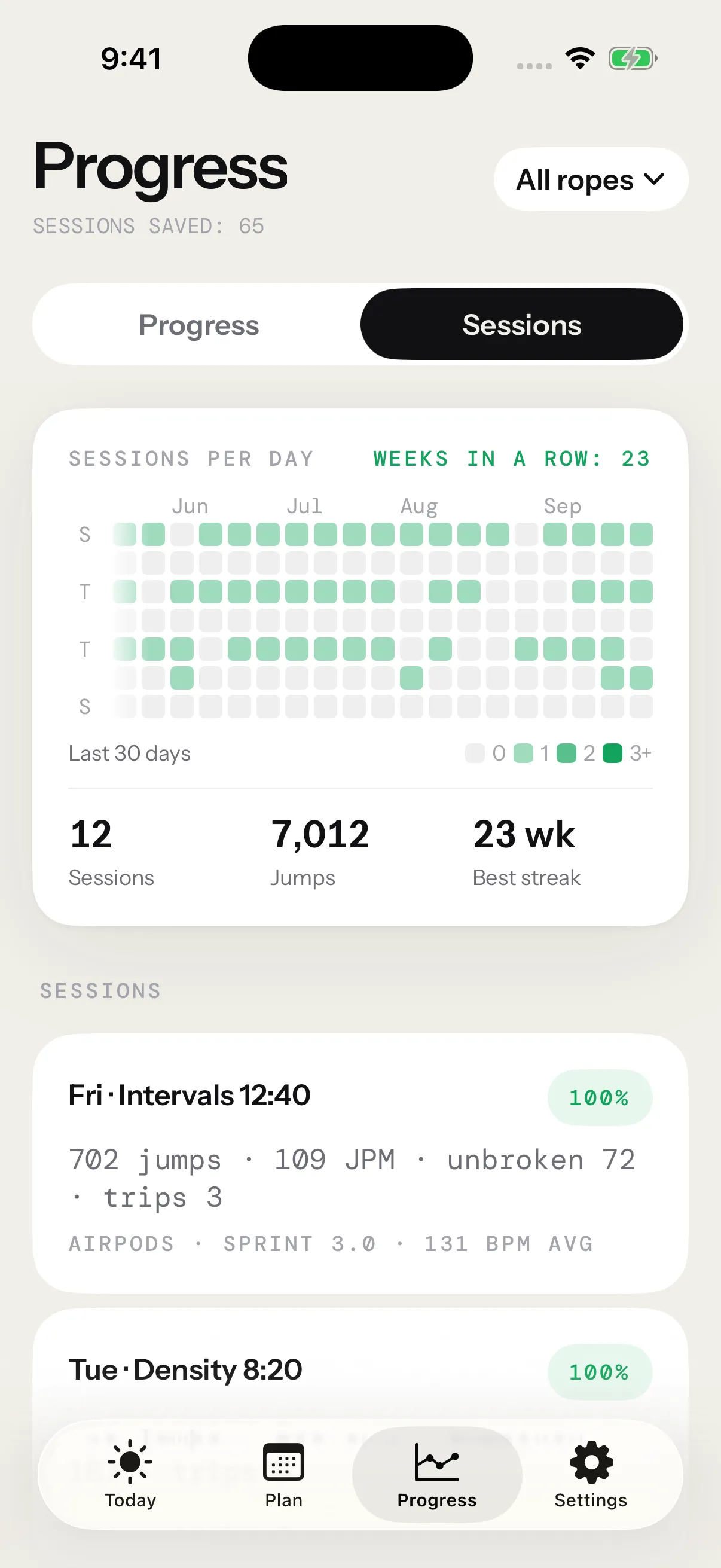
The header counts your sessions and the year you started, like 1,068 sessions · since 2020.
Sessions opens on Sessions per day: your last twelve months of days, one square each, darker as a day holds more sessions. With Pro and more than a year of training, chips above the grid pick a year. The line under the grid sums up your last 30 days, or the year you picked: sessions, jumps, and your record for weeks in a row, or the year’s time under the rope.
Tap a square to list that day’s sessions, or a month’s name for that month’s. Show all brings the whole list back.
The list runs month by month, newest first, each month headed by its sessions and jumps. It keeps loading as you scroll, all the way to your first session.
Each row shows the day of the month over its weekday, the workout’s format and how it went: the share of the target when you fell short, a stop sign when you ended early, a green check when it’s done. Under them come the time, your average JPM and the rope, with your jumps on the right. Tap a row to open its report.
Share or delete a session
Slide a session’s row to the left to show Share and Delete. With VoiceOver, both are in the row’s actions.
Share opens Share this session, with the story, as a video or a picture, or the full report. See sharing a session.
Delete a session
- In Sessions, slide the session’s row to the left.
- Tap Delete.
- Tap Delete session to confirm.
You can also delete a session from the bottom of its report. Its records and charts go with it, and there’s no undo. When the session takes badges with it, the confirmation shows them too: see Badges.
When the app can write to Apple Health, the confirmation says so: the workout the app saved there for this session goes too, with its calories and heart rate. Workouts from other apps stay put. See Apple Health.
Free and Pro
The free version keeps every session and shows the last 14 days. The grid and the list cover those two weeks, and a card under the list counts the older sessions, still kept on your iPhone. Pro shows them all.
In the Progress view, the opening card and Since the start show your own numbers, and Badges shows your three free badges and counts the Pro ones you’ve earned. Opening Since the start comes with Pro. Trends, records, repeated workouts and cardio sit behind a blur, with Unlock Pro on top.