Session reports and sharing
Every session gets one report. It opens as the summary the moment a session ends, then waits for you in Progress, with the same numbers and charts.
Right after a session
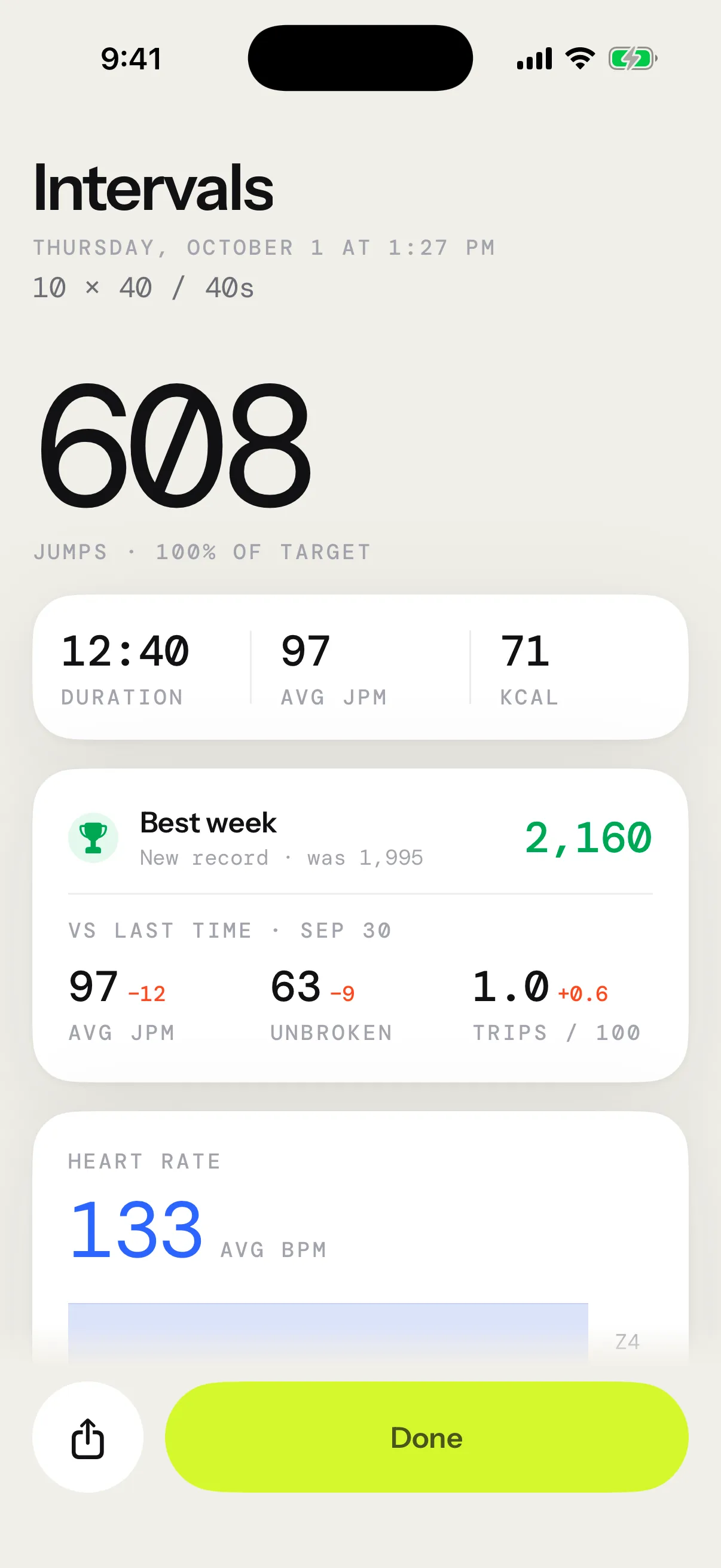
The summary is the session’s report, with a few lines added:
- The badges the session earned. A Pro badge earned without Pro shows as one line, with Unlock. See Badges.
- With Pro, the records the session broke.
- Where your week stands, if you have a weekly goal and no program running: This week’s goal, then Goal met. See Weekly goal and reminders.
- Where the session went: kept in your history, and saved to Apple Health when that’s on. If Apple Health isn’t connected yet, Connect sits right there.
- What counted the session, and where the calories come from.
Tap Done to close it. The round button beside it shares the session. Discard, under them, removes the session from your history, and its workout from Apple Health, once you confirm.
A session that counted no jumps isn’t kept, so it has nothing to share.
What the report shows
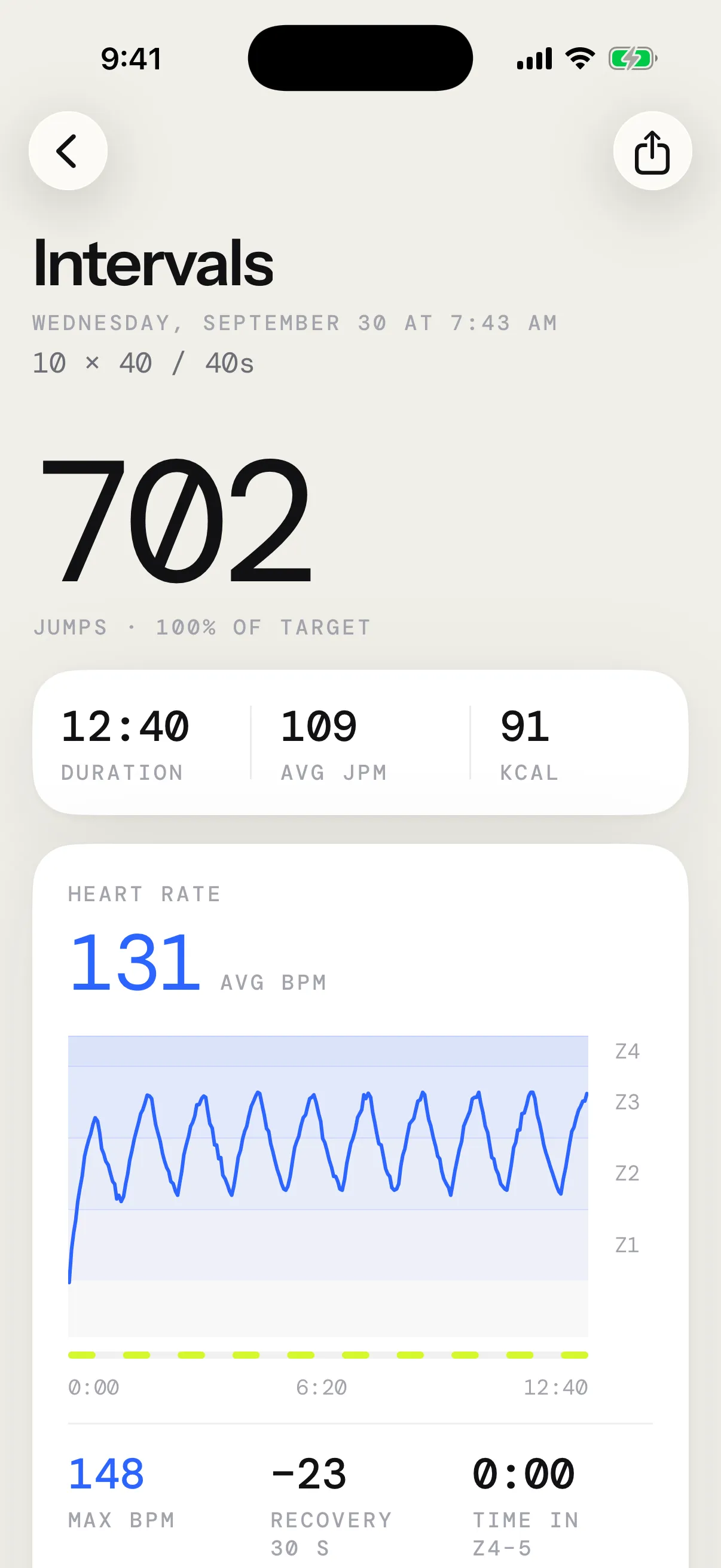
The report opens with the workout’s name, the date and the prescription. A session you ended early says Session ended.
Then comes the count, in big type. Under it, Jumps or the share of the target you hit. A max-unbroken test shows your longest run instead. Duration, Avg JPM and KCAL follow in one band. KCAL needs your weight: see Calories.
Cards come next, each one when it has something to show:
| Card | What it shows |
|---|---|
| Heart rate | Your heart rate across the whole session over its five zones, then Max BPM, Recovery 30 s, Time in Z4–5 and your time in each zone |
| Cadence | Your jumps per minute through the session, then Fastest minute, Best 30 s and Under rope |
| Rounds | A bar per round, the fastest in green and any missed one in orange, then Fastest, Slowest and, with heart rate, Avg peak BPM. For an EMOM, the card is called Minutes |
| Unbroken runs | A bar per run, your best in green, then Avg unbroken, Trips and Trips / 100 |
The Heart rate card needs heart rate, from a strap, or from your Apple Watch for a session counted there: see Heart rate. Its zones run from 50 to 100 % of your max heart rate, in a deepening blue.
At the foot, Rope names the rope you held: tap it to pick the one you really used, or No rope, and the session moves to it in Progress. Counted with says what counted the session, and Heart rate names your strap or Apple Watch.
Read a chart with your finger
Slide a finger sideways across a chart to read it, or touch and hold it for a moment. The headline above it follows your finger: the value at that moment, with the time and the round you were in. A light tap marks each new zone, round or run. Swipe up or down and the page scrolls as usual.
On iOS 17, touch and hold first, then slide.
Compare with last time
When you’ve done the same workout before, a switch sits under its name: Session, and vs the day you last did it, like vs Oct 14. Pick it to set the session against that time. The next report opens the way you left this one.
- The count shows the workout’s score, with how far it moved: more jumps for timed work, less time for a set number of jumps, a faster pace for an EMOM, more minutes for a Death by, a longer run for a max-unbroken test. Under it, last time’s score and its day.
- Every number gains its change since then. Green means better and orange worse. Calories, heart rate and time under the rope only inform, so their change stays grey.
- Cadence: when both sessions ran on the same clock, as timed rounds do, the chart becomes the difference alone. A bar for each 20 seconds of work rises in green where you were faster and drops in orange where you were slower. Read a bar with your finger for its gain.
- Heart rate: a grey band fills the room between your heart rate and last time’s, and a thin grey bar under each zone shows its share then.
- Rounds: the part of a round above last time rises in green, and a slower round shows the room it lost in orange, with each round’s change over its bar.
- Unbroken runs: the runs longer than last time’s best rise past it in green.
- Rope says whether you held the same rope as last time.
The same workout means the same plan in the same format, and last time is the latest one you finished. A session you ended early, and Free Jump, compare with nothing.
Records
With Pro, the summary also lists each record the session broke, with New record · was and the value it beat. A first session breaks nothing, and a tie keeps the record where it was.
These lines show on the summary only. Your records live on in Progress.
Open a past session
In Progress, open Sessions and tap a session. A record or a best session in the Progress view opens its report too. The share button sits at the top, and Report a problem and Delete session at the bottom: see sending us a session and deleting a session.
Share a session
Share lives in three places: beside Done on the summary, at the top of a past session’s report, and behind a row in Sessions when you slide it left.
- Tap the share button, or Share on the row.
- Pick Story or Full report, or swipe between them. On Story, pick Video or Image, and Duel or Ghost when the story is set against last time.
- Tap Share, then pick an app.
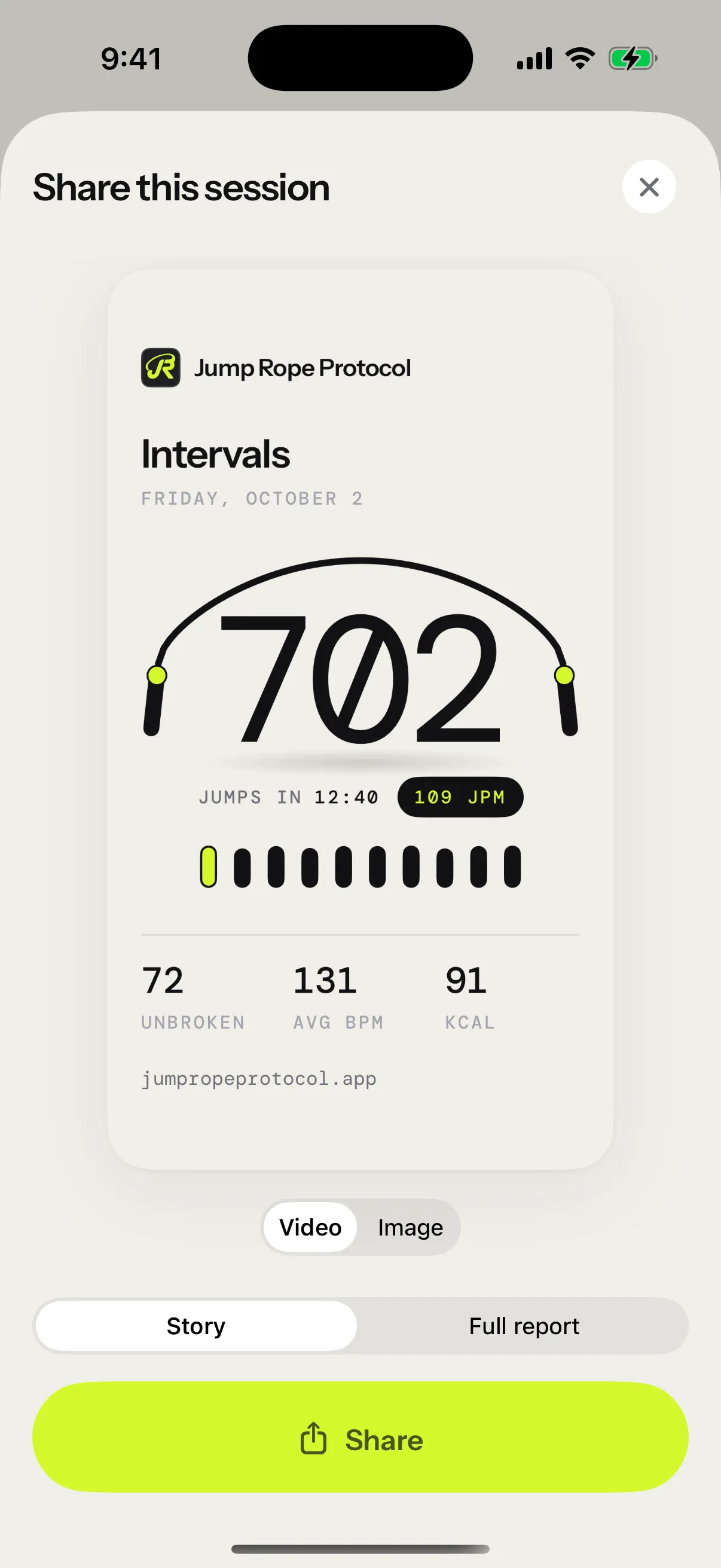
Story is made for stories, 1080 × 1920 pixels. It shows the app’s name, the session’s name and date, and your jumps held in a skipping rope, with the time they took and your average JPM: Jumps in 12:40. Under them, a bar for each round shows its pace, the fastest in lime. A session without rounds gets a bar for each minute, and a long one groups them, 12 bars at most. Up to three numbers follow: Unbroken, your longest run, then Avg BPM and KCAL. A max-unbroken test, whose count already is its longest run, shows Duration and Avg JPM instead. The site’s address sits at the foot.
Video plays the story: the number jumps its rope once for each round, at your own pace, while the count, the clock and the bars rise with it. Then the rope comes to rest over the number. It’s an MP4 of 5 to 10 seconds, without sound, that your iPhone makes when you tap Share: the button fills as it goes, for a few seconds, then the share sheet opens. Story apps play it once and stay on its last frame, the same as Image. With Reduce Motion on, the preview stays still, but the video you send still moves.
Image is the story as a still picture. It suits apps that show a video’s first frame before it plays, such as Messages.
Full report is the whole report as one long picture, signed at the foot with the app’s name and address.
Share the comparison
When the report shows vs last time, Share sends that face. Full report is the comparison, with the day it’s set against under the session’s name. When you beat last time, Story sets you against it too, in one of two styles:
- Duel races last time. Both sessions run again on one clock, a lane each, while the jumps you’re ahead by count in big figures. The race lands on how much faster you went, then the numbers that got better.
- Ghost is your own story with last time beside it: a grey bar next to each round’s, the jumps you’d gained as each round lands, like +31 vs Oct 14, and your pace with its gain.
A story only shows what got better, so when you didn’t beat last time, Story is the usual one. For now, both styles are for workouts scored in jumps, such as timed rounds or an AMRAP. Shared from a row in Sessions, a session sends its usual story.
The story and the full report keep the app’s light look and standard text size, whatever your iPhone’s settings. The first time you save one to Photos, iOS asks for access.
Where the link goes
Apps that take text with a picture, such as Messages and Mail, also get this line: “Every jump counted by Jump Rope Protocol: https://jumpropeprotocol.app/s”. The link opens the site’s home page, in English or French to match the reader’s browser. The video goes on its own, so TikTok can take it.
The link carries nothing about your session. Besides that line, the picture or video is all you send, and your iPhone makes it.
Sharing the video also copies a link to the site, https://jumpropeprotocol.app/story, because a story only makes a link clickable through its own Link sticker. In Instagram, add a Link sticker to your story and paste it. Like the other link, it carries nothing about your session.