Settings
The Settings tab holds the app’s choices. Most rows open a page of their own. Here they are from top to bottom.
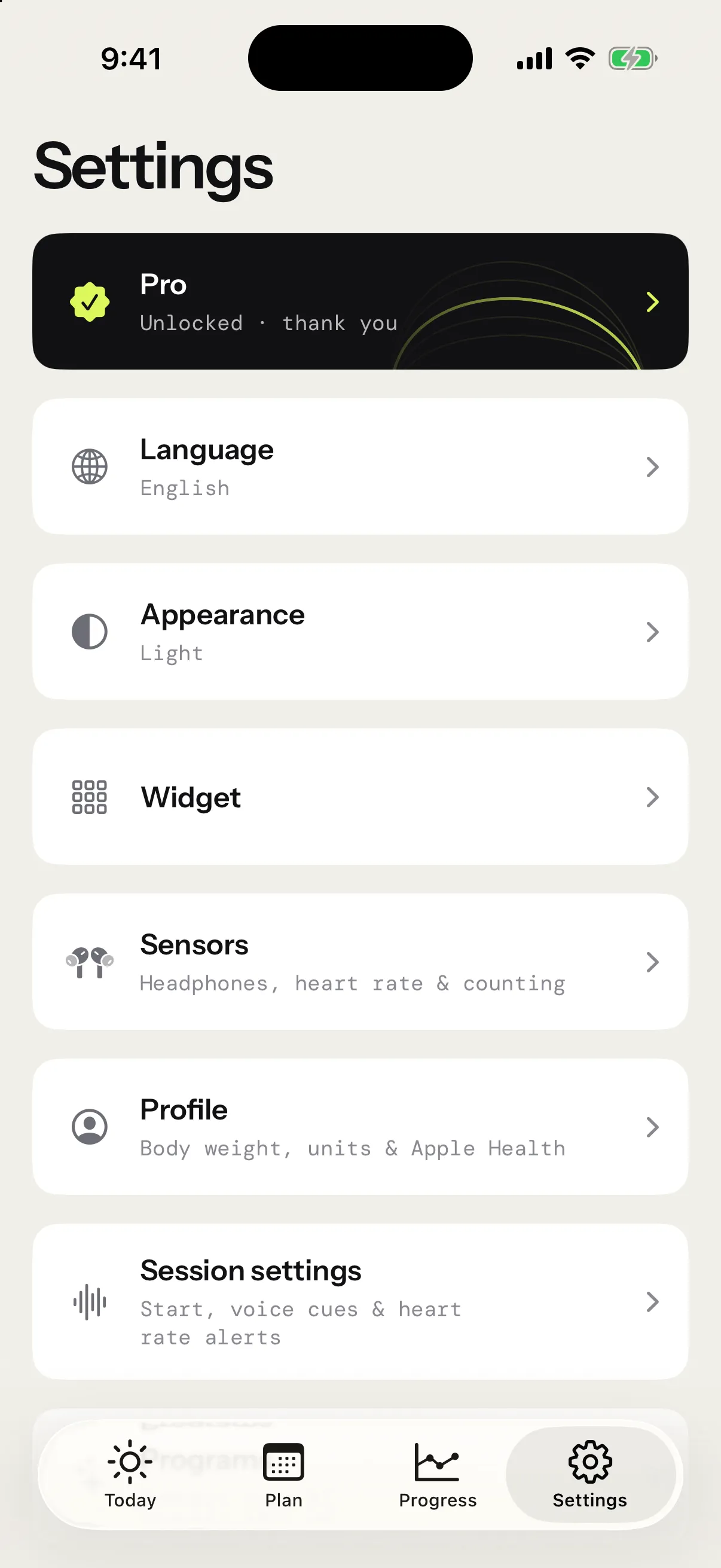
Pro
The first row opens the Pro page. Buy Pro there, or restore it on a new iPhone with Restore purchase. Once Pro is yours, the row reads Unlocked · thank you. See Pro and purchases.
Language
- App default uses the language iOS picked for the app.
- English or Français switches the whole app at once, the voice included.
Your choice stays on this iPhone.
Appearance
- System follows your iPhone’s appearance.
- Light or Dark keeps the app in that look.
The app opens in Light until you pick another.
Widget
The app has two Home Screen widgets. Activity shows your training rhythm over the last 12 weeks. Training program shows your next session and how far you are in the program you follow, in small, medium or large. This page previews both and shows how to add one. There’s nothing to set: tap a widget to open its page in the app.
Sensors
- The headphones card says whether your AirPods or Powerbeats are ready to count. When motion access is missing, its Allow button asks for it. See Counting your jumps.
- The strap card pairs a Bluetooth chest strap. With none paired, it reads No strap paired, with Pair. Once it’s paired, it shows the strap’s name and its live BPM: tap it to manage or forget the strap. See Heart rate.
- Counting sensitivity: Low, Default or High. See Counting sensitivity.
Profile
- Weight: the weight calories use. Tap it to dial it in, or to take your latest from Apple Health. See Calories.
- Units: kilograms or pounds, for your weight and your ropes. See Ropes.
- Apple Health: saves each session as a jump rope workout, with its calories and heart rate. Connect asks once for your weight and your sessions. After that, a switch turns saving on or off. See Apple Health.
On iOS 26 or later, connecting Apple Health also keeps sessions counting with the iPhone locked. See Off screen and on the Lock Screen.
Session settings
The same page opens from the setup screen: tap Session settings, above Start session.
- Start: Start on first jump waits for your first jump instead of counting down. It starts off. Countdown sets the countdown before a session: None, or 3, 5, 10, 15 or 30 seconds, with 3 to start. It’s greyed out while Start on first jump is on. Both settings reach your Apple Watch too. See The countdown.
- Counting sensitivity, as in Sensors.
- Voice cues turns the voice on or off. Under it, Volume sets how loud it speaks, and Lower music dips your music while it talks.
- Announcements lists what the voice says, each with its own switch: Countdown, Countdown to rest, Work and rest, Round number, Time left, Jumps per round, Goal reached and End of session. Jump total says your total every 50, 100 or 200 jumps, or never with Off.
- Max heart rate sets your five heart-rate zones. It starts at 190 BPM and goes from 120 to 220. High heart rate alert tells you when you reach it.
More in Voice and announcements and Heart rate.
Goal
Goal sets how many sessions a week you aim for, from 1 to 7, and the reminders toward it: the switch, the days and the time. While a program runs, its rhythm sets the goal. The row shows your goal under its name. See Weekly goal and reminders.
Programs
Programs opens Connect your AI: how to connect Claude, Grok, ChatGPT or another assistant so it writes you a program or a workout, with the server address to give it. It comes with Pro: without it, the row shows a lock and opens the Pro page. See Connect your AI.
Community
- Send feedback opens an email to support with your app version, your iPhone’s model and its iOS version already filled in. Without an email app, it gives you the address to copy.
- Rate on the App Store opens the app’s page on the App Store, ready for you to write a review.
- Diagnostics lists your last five headphone sessions, those that counted nothing included, so you can send us one that went wrong. See Send us a session that went wrong.
- Join us on Discord opens the app’s Discord.
- Support development, once Pro is yours, offers an optional one-time thank-you, in three sizes. It unlocks nothing more, and your Pro stays the same.
- Privacy policy opens the policy on this website, in French when the app is in French. See Your data and privacy.
- Share usage analytics sends PostHog the usage and purchase events described in Your data and privacy. It stays off until you turn it on. The app asks you once, after onboarding, and nothing is sent until you say yes. Your choice covers your paired Watch too.
App and device info
At the very bottom sit the app’s version and build, then your iPhone’s model and iOS version. Tap Copy app & device info to copy all of it, ready to paste into a message to support. See Troubleshooting.